
So this is the 3rd part of a multi part series on my journey with Bicep and ARM Templates and deploying AVD as a PAW..
- Part 1 – A high level overview
- Part 2 – The core components
- Part 3 – Deploying the session hosts
- Part 4 – Completing the setup
- Part 6 – Securing Access
- Part 7 – Logging on to AVD
Introduction
Welcome to the 3rd installment of my multipart series on using a virtual/cloud PAW. By now you have hopefully deployed the core components for AVD, the Host pool, the Application group and the Workspace. Now you have that you need to create the session hosts.
So, what is a session host?
According to Copilot:
_AnAVD Session Host(Azure Virtual Desktop Session Host) is a virtual machine (VM) in the Azure Virtual Desktop environment that hosts user sessions. It allows multiple users to connect and run their applications and desktops remotel_y. The session host is part of ahost pool, which is a collection of VMs that provide resources to users. These hosts manage user connections, ensuring that each user has a responsive and secure experience
My addition to this is that other than using Windows 11 Multi Session, there is not much difference in the VM’s until it comes to the VM Extensions, one of which is what joins it to the Host pool.
More info can be found here:
Add session hosts to a host pool – Azure Virtual Desktop | Microsoft Learn Microsoft Entra joined session hosts in Azure Virtual Desktop | Microsoft Learn
The sessions hosts I am deploying are specifically joined to Entra only and not a local domain. They will also be on a completely separate vNet away from any additional resources.
Requirements for the session hosts
So whats needed for the session hosts? Firstly, you need the core components, which we’ve covered off in the previous post. Next we need the following
- vNet – a network for the cPAW’s to connect to
- Nic – this is required before the VM is deployed so that it can then be attached to the VM
- The VM itself
- The VM Extensions
These are all taken care of by the Create-SessionHost Bicep file.
The script
For the latest and most up to date script I recommend that you check my GitHub and get it from there as the one here might have changed slightly.
`paramlocationstring='uksouth'paramsessionHostPrefixstring='cPAW'paramnumberOfHostsint=2@secure()paramadminPasswordstringparamadminUsernamestring='cPAW-Admin'paramhostPoolRegistrationInfoTokenstring='Enter HostPool Registration Key here'varmodulesURL='https://wvdportalstorageblob.blob.${environment().suffixes.storage}/galleryartifacts/Configuration_1.0.02797.442.zip'// Reference the HostPoolresourceHostPool'Microsoft.DesktopVirtualization/hostpools@2021-07-12'existing= {name:'${sessionHostPrefix}-HostPool'}// Deploy the network infrastructureresourcevNet'Microsoft.Network/virtualNetworks@2021-05-01'= {name:'${sessionHostPrefix}-vNet'location:locationproperties: {addressSpace: {addressPrefixes: ['192.168.250.0/24']}subnets: [{name:'${sessionHostPrefix}-Subnet'properties: {addressPrefix:'192.168.250.0/24'}}]}}//Create the NIc's for the VM'sresourcenic'Microsoft.Network/networkInterfaces@2020-11-01'= [foriinrange(0,numberOfHosts): {name:'${sessionHostPrefix}-${i}-nic'location:locationproperties: {ipConfigurations: [{name:'name'properties: {privateIPAllocationMethod:'Dynamic'subnet: {id:vNet.properties.subnets[0].id}}}]}}]//Create the VM'sresourceVM'Microsoft.Compute/virtualMachines@2020-12-01'= [foriinrange(0,numberOfHosts): {name:'${sessionHostPrefix}-${i}'location:locationidentity: {type:'SystemAssigned'}properties: {hardwareProfile: {vmSize:'Standard_d2as_v5'}osProfile: {computerName:'${sessionHostPrefix}-${i}'adminUsername:adminUsernameadminPassword:adminPassword}storageProfile: {imageReference: {publisher:'MicrosoftWindowsDesktop'offer:'Windows-11'sku:'win11-24h2-avd'version:'latest'}}networkProfile: {networkInterfaces: [{id:nic[i].id}]}}}]//Join the VM's to Entra and Entroll in intuneresourceentraIdJoin'Microsoft.Compute/virtualMachines/extensions@2021-11-01'= [foriinrange(0,numberOfHosts): {parent:VM[i]name:'${sessionHostPrefix}-${i}-EntraJoinEntrollIntune'location:locationproperties: {publisher:'Microsoft.Azure.ActiveDirectory'type:'AADLoginForWindows'typeHandlerVersion:'2.2'autoUpgradeMinorVersion:trueenableAutomaticUpgrade:falsesettings: {mdmId:'0000000a-0000-0000-c000-000000000000'}}}]//Install the Guest Attestation ExtensionresourceguestAttestationExtension'Microsoft.Compute/virtualMachines/extensions@2024-07-01'= [foriinrange(0,numberOfHosts): {parent:VM[i]name:'${sessionHostPrefix}-${i}-guestAttestationExtension'location:locationproperties: {publisher:'Microsoft.Azure.Security.WindowsAttestation'type:'GuestAttestation'typeHandlerVersion:'1.0'autoUpgradeMinorVersion:true}dependsOn:[entraIdJoin]}]//run some preperation on the VM's to remove any windows apps and also enable cloud kerberosresourceSessionPrep'Microsoft.Compute/virtualMachines/extensions@2021-03-01'= [foriinrange(0,numberOfHosts): {parent:VM[i]name:'${sessionHostPrefix}-${i}-CSessionPrep'location:locationproperties: {publisher:'Microsoft.Compute'type:'CustomScriptExtension'typeHandlerVersion:'1.10'autoUpgradeMinorVersion:truesettings: {fileUris: ['https://raw.githubusercontent.com/andrew-kemp/CloudPAW/refs/heads/main/SessionHostPrep.ps1']commandToExecute:'powershell -ExecutionPolicy Unrestricted -File SessionHostPrep.ps1'}}dependsOn: [guestAttestationExtension]}]// Join the SessionHosts to the HostPoolresourcedcs'Microsoft.Compute/virtualMachines/extensions@2024-03-01'= [foriinrange(0,numberOfHosts): {parent:VM[i]name:'${sessionHostPrefix}-${i}-JointoHostPool'location:locationproperties: {publisher:'Microsoft.Powershell'type:'DSC'typeHandlerVersion:'2.76'settings: {modulesUrl:modulesURLconfigurationFunction:'Configuration.ps1\\AddSessionHost'properties: {hostPoolName:HostPool.nameaadJoin:true}}protectedSettings: {properties: {registrationInfoToken:hostPoolRegistrationInfoToken}}}dependsOn: [SessionPrep]}]`
This can be broken down into 9 sections:
- The Parameters and Variables
- Referencing the Host pool to join
- Create the vNet
- Create the Nic or Nic’s depending on the number of hosts you’re going to deploy
- Create the session host/s it/them selves
- Join the session hosts to Entra and enroll in to Intune
- Install the Guest Attestation Extension
- Performs a bit of the session host prep (runs a script on the VM)
- Joins the session host to the host pool
Again, like before, to run the script you need to convert the Bicep file to JSON, hopefully you’ll be familiar with that process now.
Deploying the custom tempate.
So again, like before you need to go to the Azure Portal and deploy a custom template, so follow the process you did previously but past in the JSON of this Bicep file instead. And you will see the following:
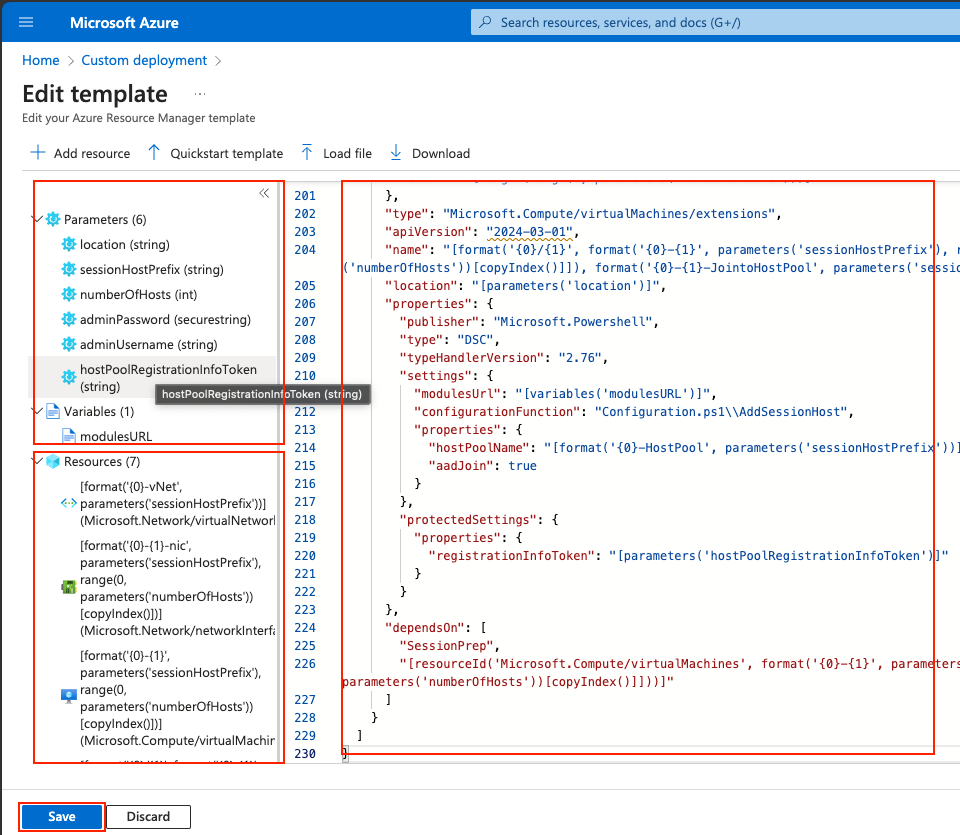
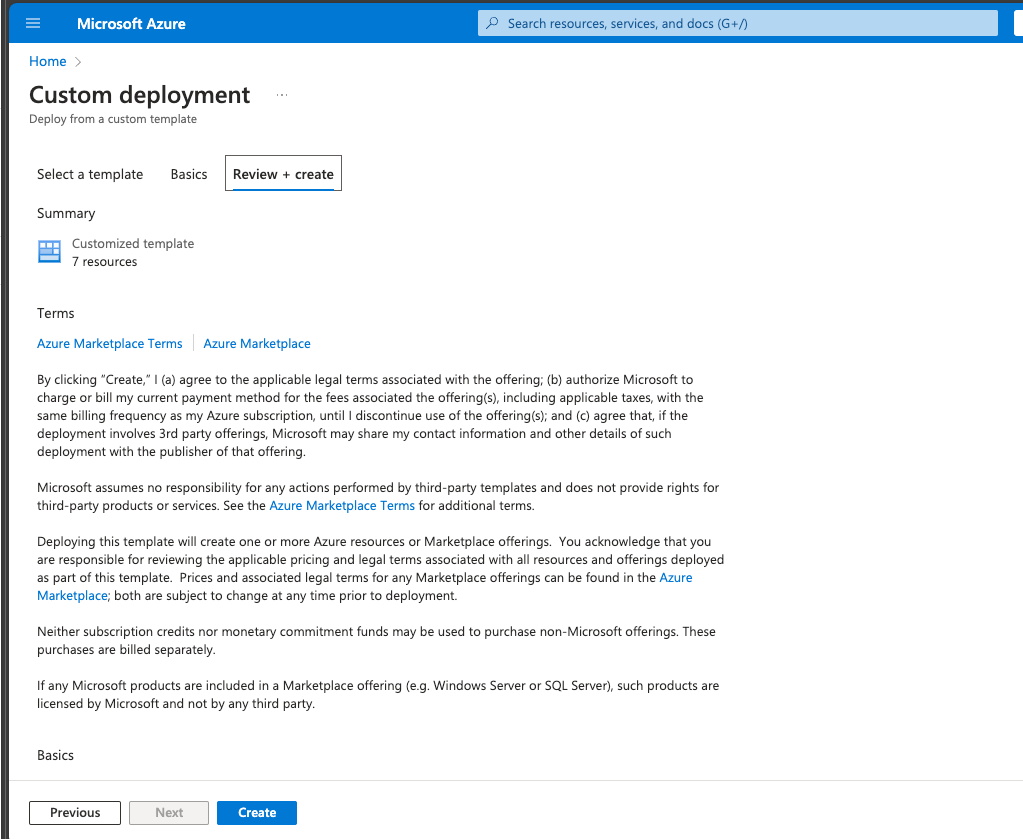
Verify that you have the Parameters and variables that you have set are listed, and you will see that there are 7 resources to deploy.
Click onSave.
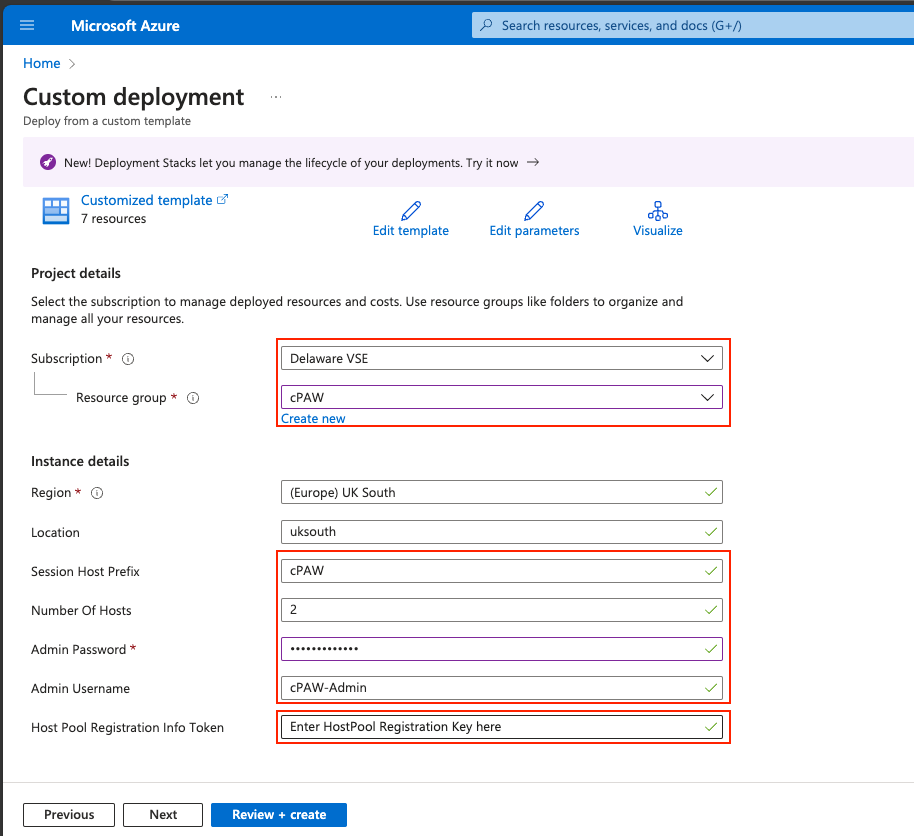
Select the subscription and resource group you created previously. if you set that to something else you might want to then set the session host prefix to be what you set it to, otherwise my script later on will not work.
Feel free to change the number of session hosts if you wish. Set a complex local admin password. Again, feel free to change the local Admin username to a username of your choosing.
Next we then need to get the Host pool registration key, so that we can register the session hosts in the Host pool.
To do this you will need to open another tab in your browser and go to the recently created Host Pool and click on theRegistration key. As this is a new host pool there will not be a key available so you will need to create it.
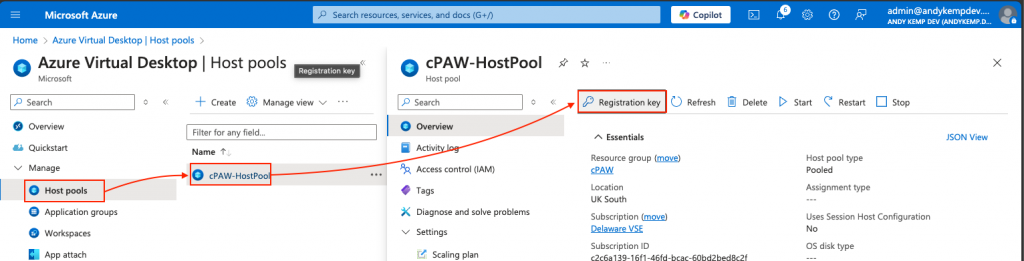
Click onGenerate new key:
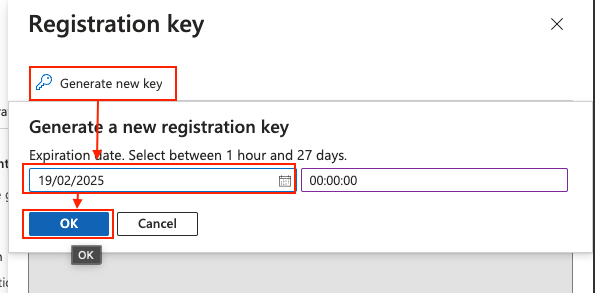
you can specify the duration of the validity of the key, I just set it to one day and then click onOK:
you will then see the new key:
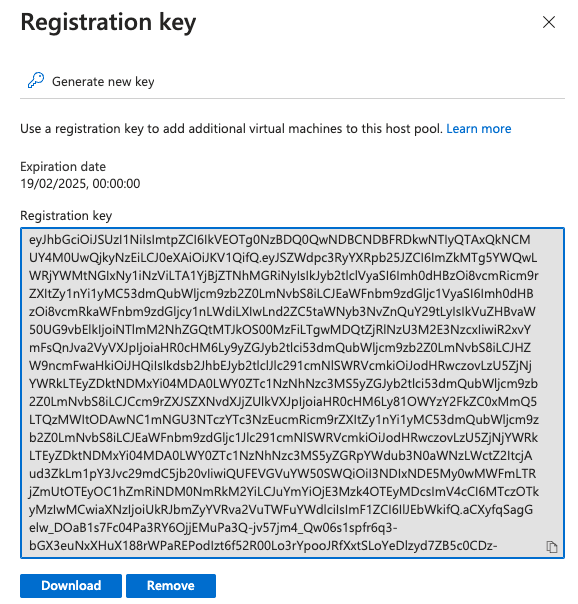
Copy this and paste in to the deployment template
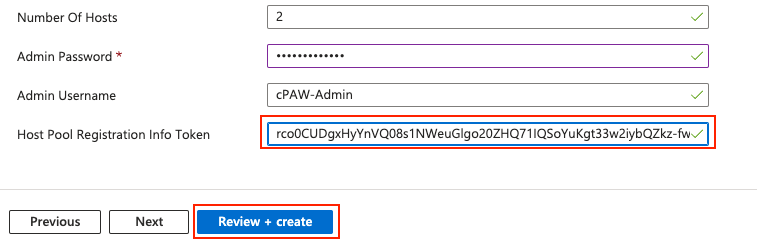
Click onReview + createand thenCreateon the overview:
This process may take some time so go and make a cuppa.
After about 25 Minutes my deployment had completed with green ticks for all the resources.
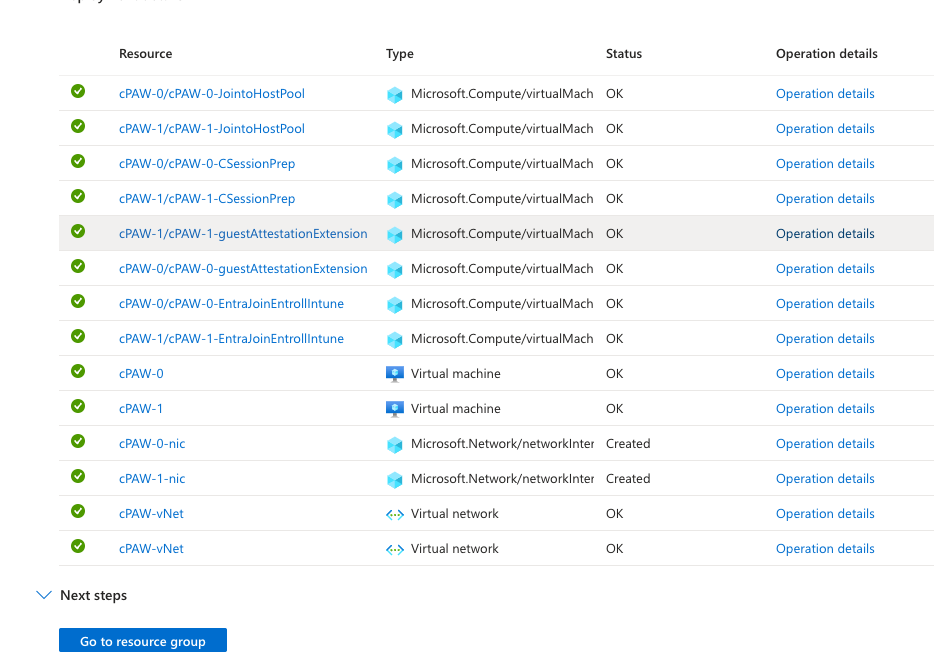
Then, when I go to the Host pool in Azure I can see that I now have 2 machines that I can connect to:
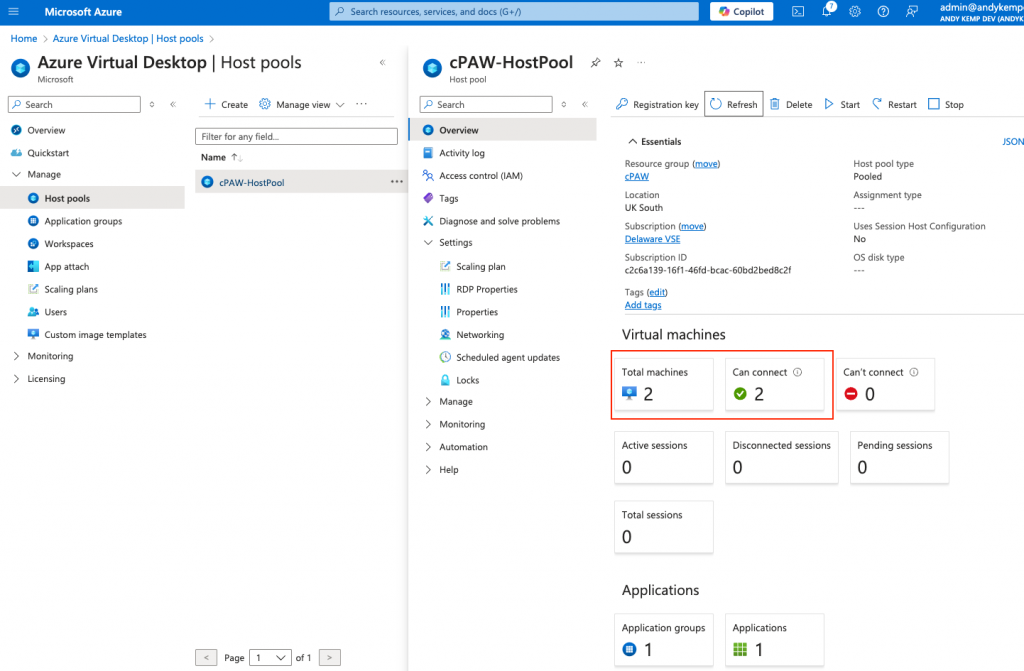
However, I cannot connect to them just now as I need to add the permissions etc, that will come in the next post.
When I then go to device in Entra I can see these 2 Devices and the Same for Intune:
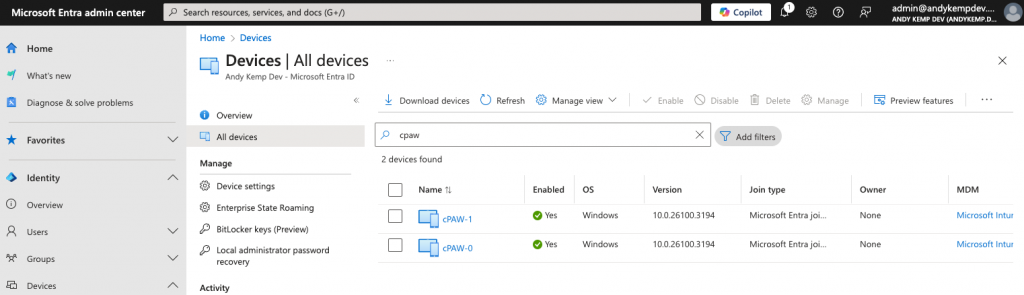
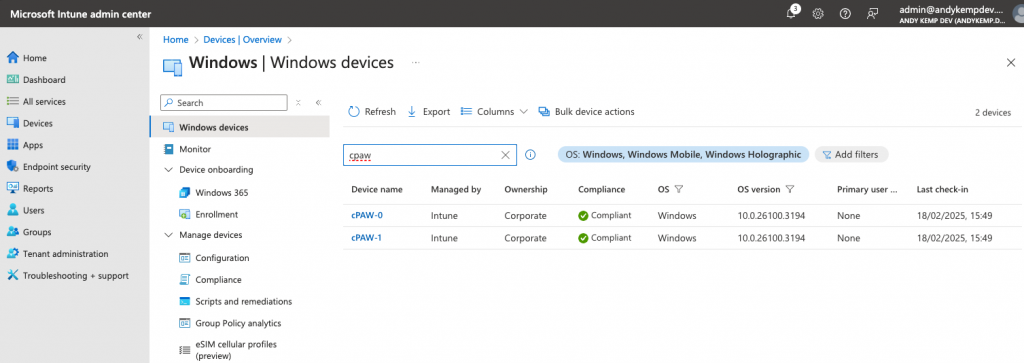
VM Extensions installed
As I mentioned above I have 4 Extensions installed on the VM’s:
- Entra join and enroll in Intune
- Custom Extension – Runs a PowerShell Scripts for the session host prep
- Guest Attestation Extension
- Join to Host pool
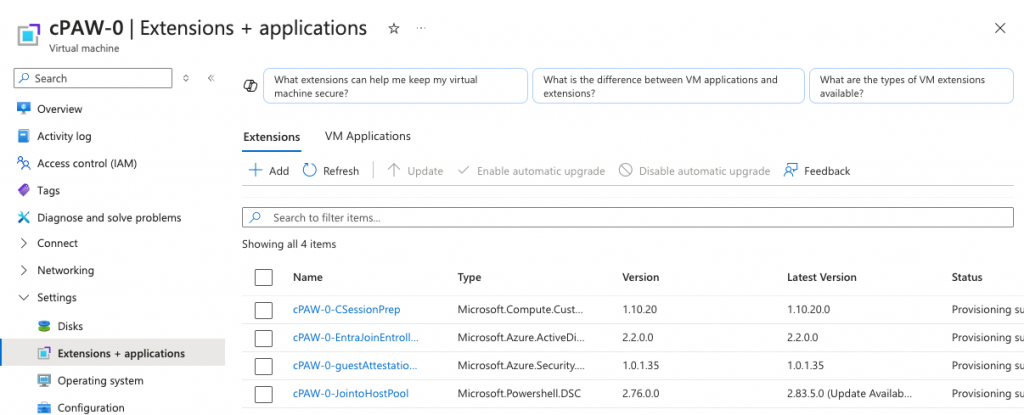
Extensions 1,2 and 4 are pretty self explanatory, as these are usually deployed with all Session hosts, however the 3rd one is something I have added in myself. There is probably a better name for it than session prep but thats what I called it.
Session host prep extension
This extension is running a custom PowerShell Script that can be found in my GitHub:
CloudPAW/SessionHostPrep.ps1 at main · andrew-kemp/CloudPAW
`//run some preperation on the VM's to remove any windows apps and also enable cloud kerberosresourceSessionPrep'Microsoft.Compute/virtualMachines/extensions@2021-03-01'= [foriinrange(0,numberOfHosts): {parent:VM[i]name:'${sessionHostPrefix}-${i}-SessionPrep'location:locationproperties: {publisher:'Microsoft.Compute'type:'CustomScriptExtension'typeHandlerVersion:'1.10'autoUpgradeMinorVersion:truesettings: {fileUris: ['https://raw.githubusercontent.com/andrew-kemp/CloudPAW/refs/heads/main/SessionHostPrep.ps1']commandToExecute:'powershell -ExecutionPolicy Unrestricted -File SessionHostPrep.ps1'}}dependsOn: [guestAttestationExtension]}]`
So what does this do? Well its simple really, it does 2 things.
- It removes all unwanted Windows Apps off the session hosts before they are logged on to.
- it enables CloudKerberos. This is used for when FSLogix is located on Azure storage. IF you are having a lot of users log on to the cPAW’s you’ll not want to have all the profiles stored locally as you will soon run out of disk space.
This will run the script directly from the Raw GitHub URL so there is no need to copy the script if needed.
Conclusion
I now have the Host pool, Application group, Workspace, vNet and Session hosts that are both Entra joined and Enrolled in Intune. This is the basics in place for using AVD in general not just as a PAW.
I was hoping to get the whole thing automated, with retrieving the registration key for the Host pool and using that. That way I can look at one Bicep script for it all, That might be the next project I work on.
But for now, this will meet my needs. I still only need to have a very lite touch in my deployment and it will do me for now.
Comments
No comments yet — be the first to leave one below.