
This is part 2 of my Always On VPN series
You can review the pervious posts if required:
- Always On VPN Entra Join – Part 1 Whats needed – Andy Kemp
- Always On VPN Entra Join – Part 2 Certificate Templates – Andy Kemp
- Always On VPN Entra Join – Part 3 Core Always On VPN Infrastructure – Andy Kemp
- Always On VPN Entra Join – Part 4 Configure Always On VPN for Entra Joined Devices – Andy Kemp
- Always On VPN Entra Join – Part 5 Deploy Always On VPN for Entra Joined Devices – Andy Kemp
Introduction
Certificates are at the heart of Always On VPN as this is what is used to authenticate the user. Group Policy needs to be updated when deploying the certificates to servers and users via Active Directory. When deploying via NDES the certificates are deployed via a Service Account.
This section of the series will go through getting the User Groups setup, the Service Account and the Certificate Templates configured.
Lab Environment
So my setup is configured as so:
ServerRoleDetailsAkdec-dc1Domain Controllerad.andykemp.devAkdev-caCertificate AuthorityAndyKempDev-CAAkdev-ecEntra ConnectAkdev-rrasRouting and Remote Access Servicevpn.andykemp.devAkdev-npsNetwork Policy ServiceAkdev-ndesNetwork Device Enrolment ServiceSCEPAkclient-1Domain Joined ClientAkclient-2Entra Joined Client
Certificate Auto-Enrollment via Group Policy
The NPS, RRAS and NDES Servers and Domain Users rely on GPO to deploy the certificates. With this in mind the first thing to do is to create an auto-enrollment policy:
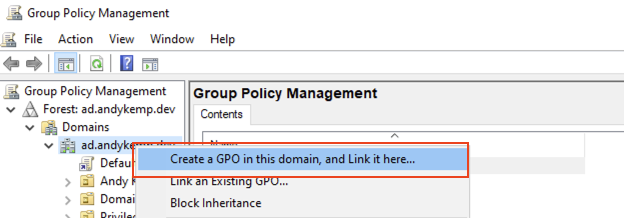
Load up the Group Management Console and right click on the root of the domain and selectCreate a GPO in this domain, and link it here…:
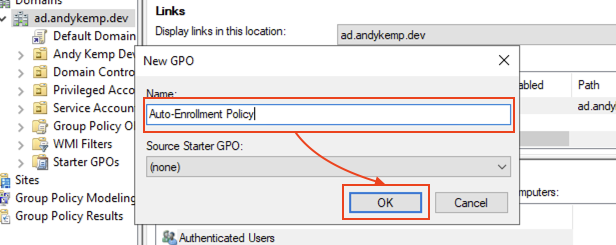
Give it a meaningful name and then click onOK:
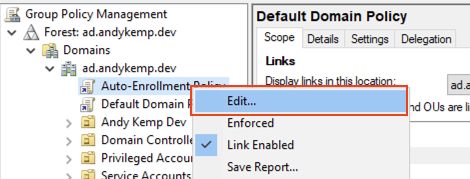
Right click on the newly created GPO and selectEdit:
Computer Configuration
This is needed for the server infrastructure
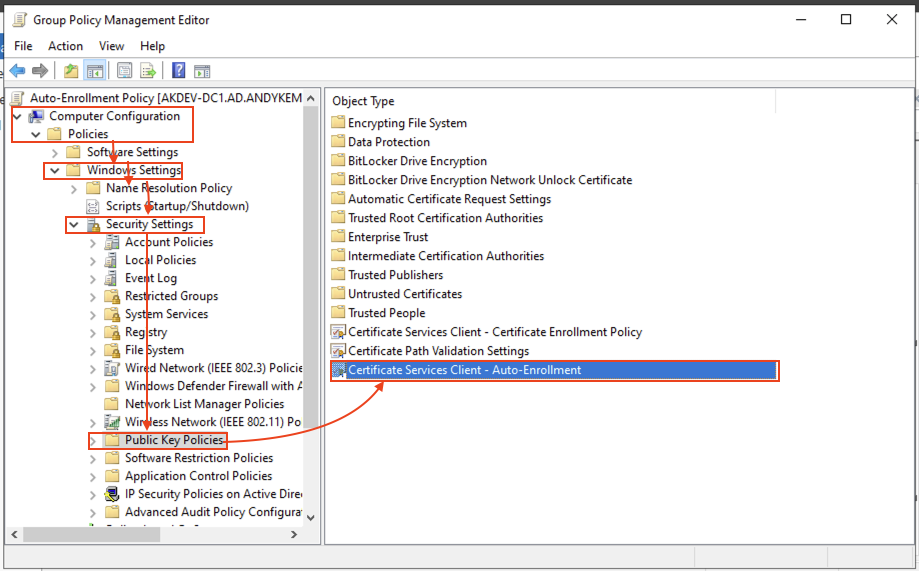
Go to:Computer Configuration > Policies > Windows Settings > Security Settings > Public Key Policiesand then double Click onCertificate Services Client – Auto – Enrollment:
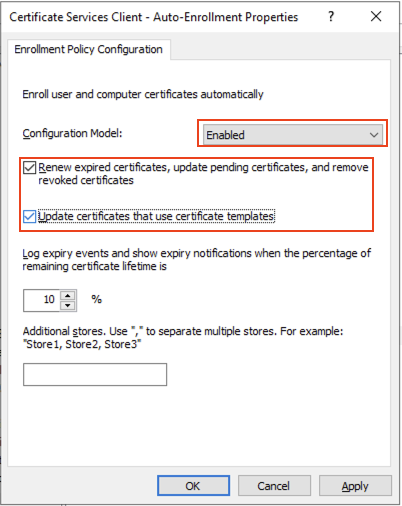
Edit the properties as below:
Configure Model:Enabled
Select bothRenew expired certificates that use certificate templatesandUpdate certificates that use certificate templatesand then click onOK:
User Configuration
This is only required if you are going to deploy to Always On VPN to Domain Joined Devices, so if you are in the same Editor go to
User Configuration > Policies > Windows Settings > Security Settings > Public Key Policies:
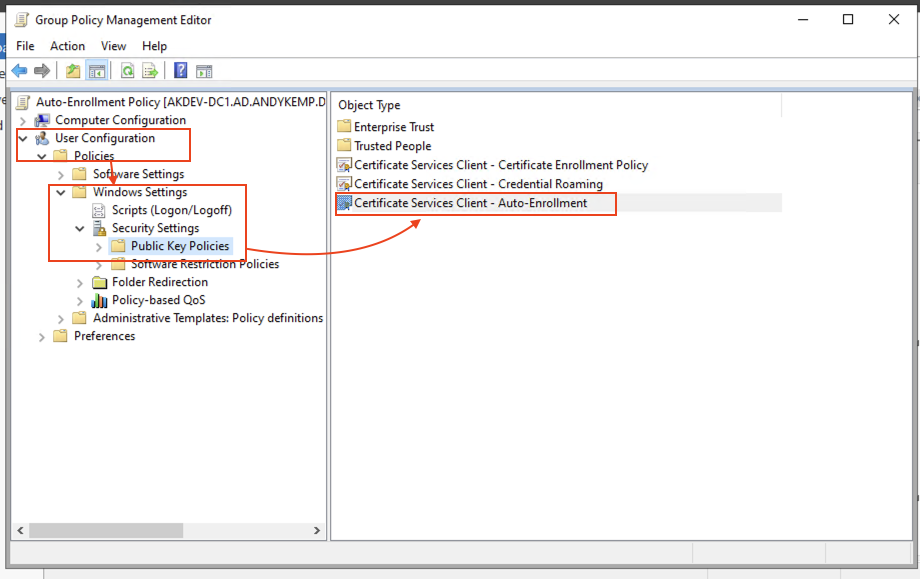
Double click onCertificate Services Client – Auto-Enrollmentand make the same changes as above.
Configure Model:Enabled
Select bothRenew expired certificates that use certificate templatesandUpdate certificates that use certificate templatesand then click onOK:
Thats the Group Policy part out the way.
AD Security Groups and Service Account
In order to deliver the policies to the servers and the users there are a few security groups that are needed. The Service account is used for the NDES infrastructure later.
So I’ll not bother doing any screen shots of this as hopefully if you’re doing this you’ll know how to create a security group 🙂 but you will need the following groups
Group NameGroup DescriptionMembersVPN ServerGroup to target RRAS serversakdev-rrasNPS ServerGroup to target NPS Serversakdev-npsVPN UsersGroup for all VPN [email protected] ServerGroup for all NDES Serversakdev-ndes
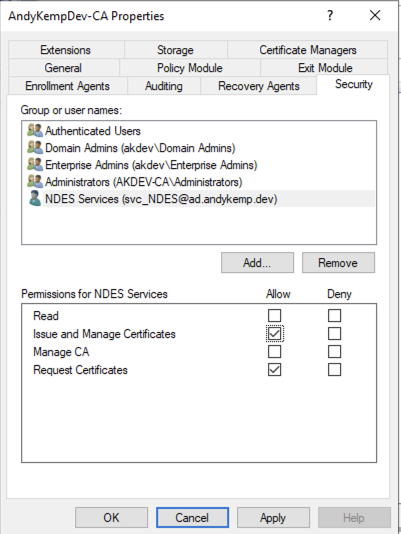
There are no specific requirements for both the groups and then Service Account other than for the Service Account the password need to be long, strong and complex and set to never expire. It only needs to be a member of Domain Users my service account issvc_NDES.
Certificates
As mentioned above the following certificates are needed:
- VPN Server
- NPS Server
- NDES Server
- VPN User (Domain Joined)
- VPN User (Entra Joined)
These certificates are created from duplicates of either the RRAS and IAS certificate or the User Certificate which are then issued to Active Directory.
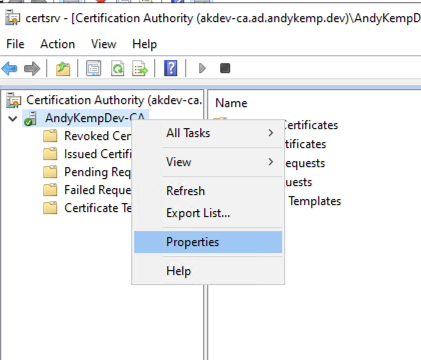
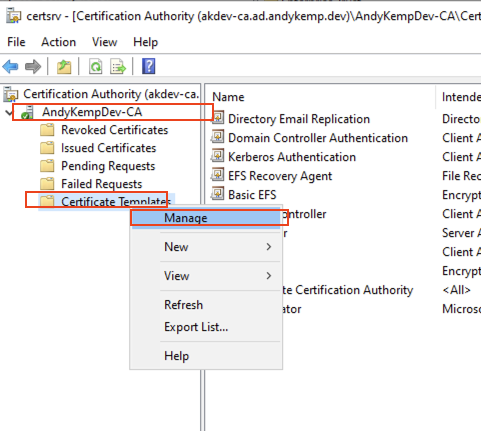
To create a duplicate of the certificates required simply connect to theCertificate Authorityright click onCertificate Templatesand click onManage:
Then select the Certificate you want to duplicate and then right click and selectDuplicate:
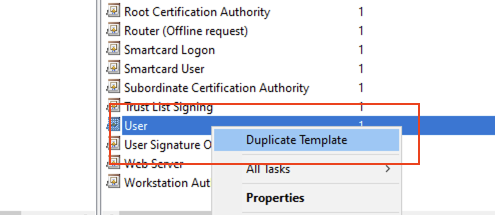
This then will create a copy of the Certificate where you can make the changes required. As mentioned the VPN, NPS and NDES certificates should be duplicates of the RAS and IAS Server certificate template and the VPN User Domain Joined and VPN User Entra Joined will be duplicates of the User Template.
NBAs per Microsoft when creating the certificates do not click on OK until you have made all the settings as some settings can only be configured at template creation.
The VPN, NPS and VPN User (Domain Joined) Certificates are created as per this MS Doc:Tutorial – Deploy Always On VPN – Configure Certification Authority templates | Microsoft Learn
The NDES and VPN User (Entra Joined) are created with some differences.
VPN Server
Duplicate theRAS and IAS ServerTemplate and configure the following settings:
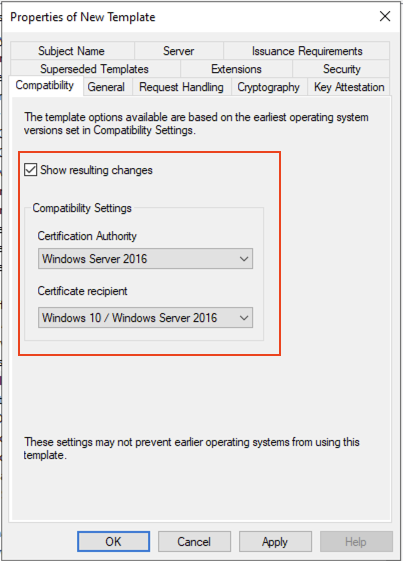
Set the compatibility as below. Don’t worry about the warning and clickOKfor theResulting Changes.
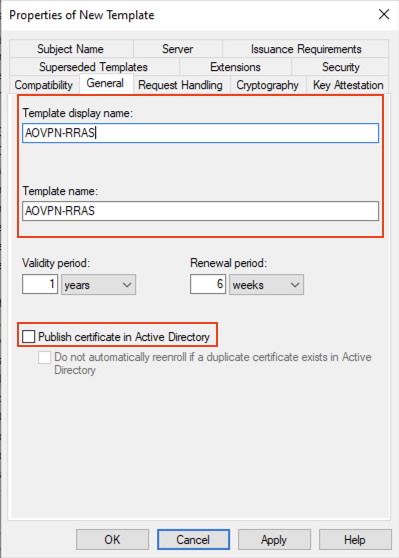
On the General tab give it a meaningful name and ensure that thePublish certificate in Active Directoryisnotselected:
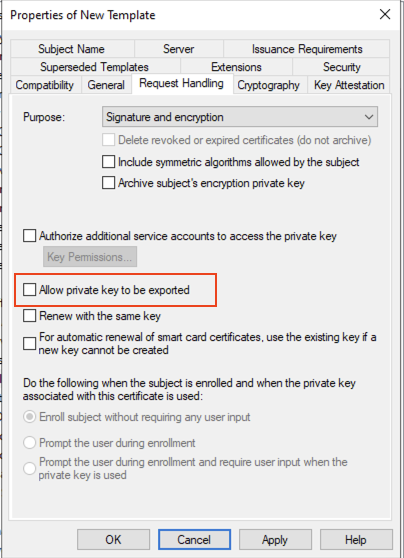
On theRequest Handlingtab ensure that theAllow private key to be exportedisnotselected:
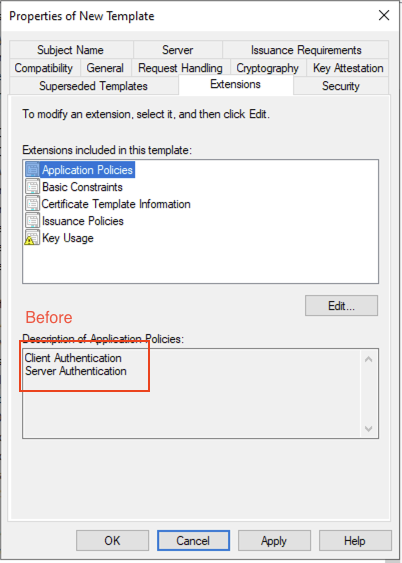
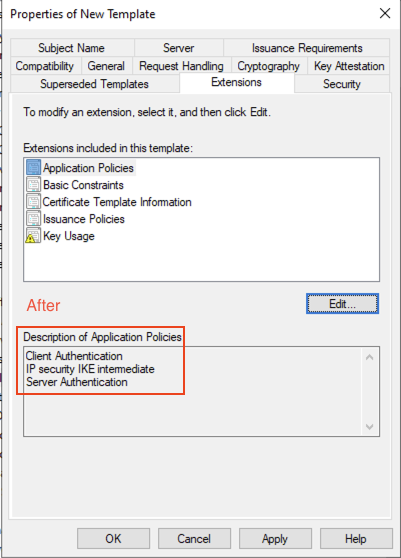
Edit theApplication policiesto addIP security IKE Intermediateas an additional application policy on theExtensionstab
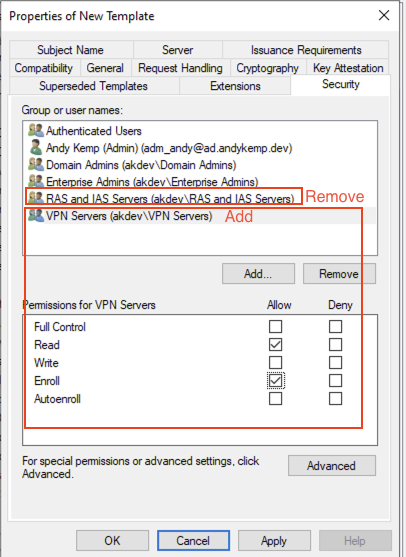
On theSecuritytab add theVPN Serverssecurity group to the permissions and selectEnrolland then remove theRAS and IAS Serversfrom the list:
Lastly, on theSubject Nametab ensure thatSupply in the requestis selected. SelectOKon the notification.
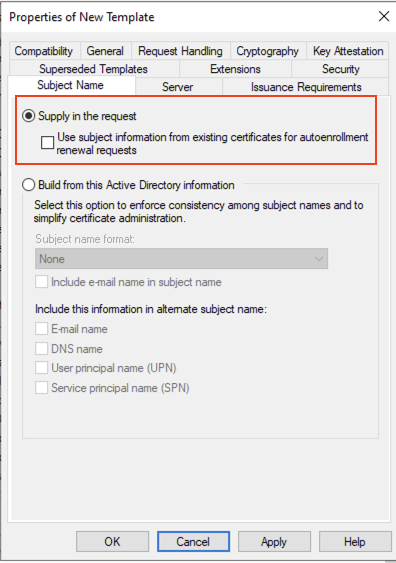
At this point you can now click onOKto complete the VPN Server Certificate.
NPS Server
Duplicate theRAS and IAS ServerTemplate as done previously and make the following changes:
Set the compatibility as below. Don’t worry about the warning and clickOKfor theResulting Changes.
Set the compatibility as below. Don’t worry about the warning and clickOKfor theResulting Changes.
On the General tab give it a meaningful name and ensure that thePublish certificate in Active Directoryisnotselected:
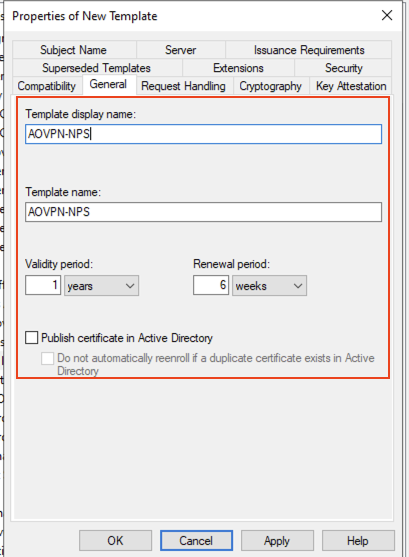
On theSecuritytab add theNPS Serverssecurity group and ensure thatEnrollis selected and removeRAS and IAS Servers:
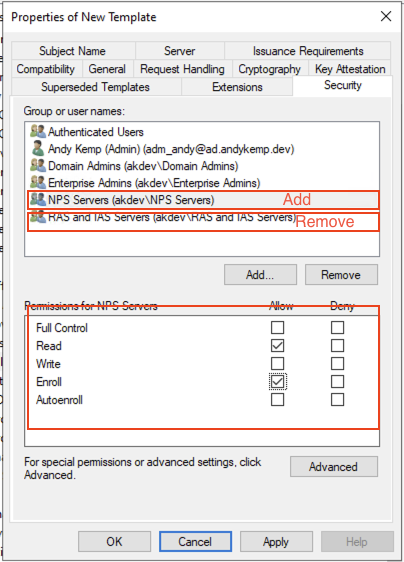
Once the security permissions have been added clickOKto complete the certificate template creation
NDES Server
Again duplicate theRAS and IAS ServerTemplate as before, however, you’ve guessed it the Name needs to be meaningfulAOVPN-NDESand the security needs to include the security groupNDES Serverswith the permission toReadandEnrolland removeRAS and IAS Serversfrom the security settings
VPN User – Domain Joined
For the next two certificates we need to duplicate theUserTemplate.
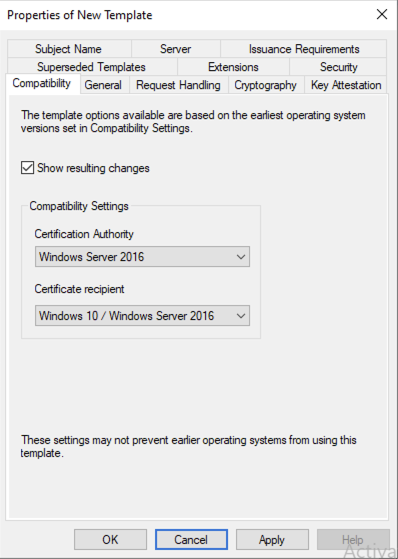
On theCompatibilitytab make the following changes (as before)
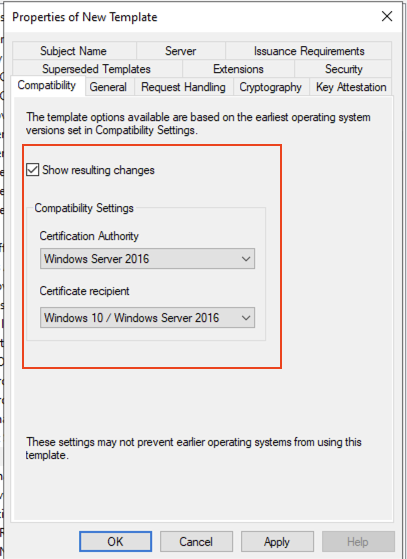
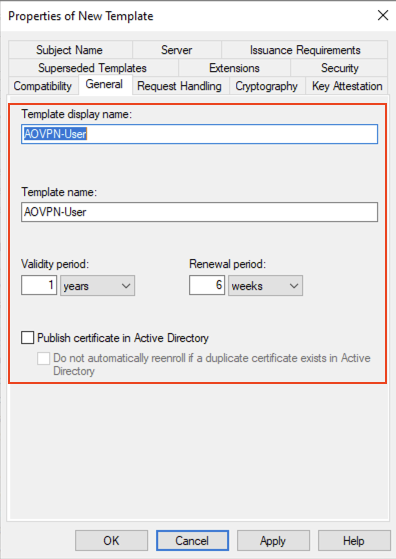
Provide a meaningful name on theGeneraltab and clear thePublish certificate in Active Directory:
For Domain Joined I have called itAOVPN-User
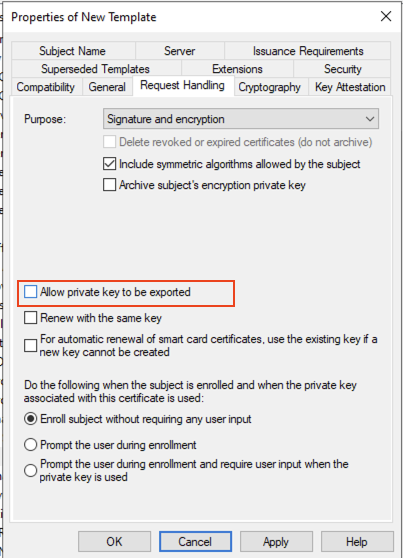
On theRequest Handlingtab remove the option toAllow private key to be exported:
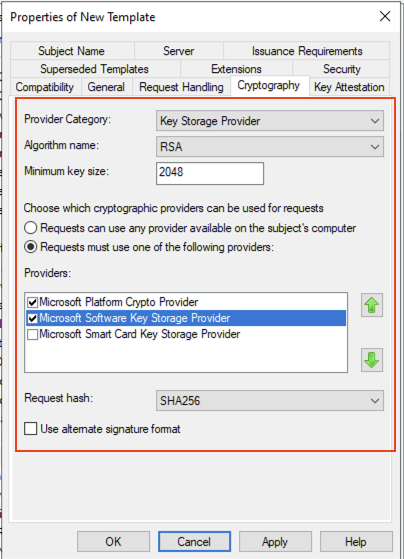
On theCryptographytab make the following changes:
Provider Category:Key Storage Provider On the option to Choose which cryptographic providers can be used for requests select:Requests must use one of the following providers Then selectMicrosoft Platform Crypto ProviderandMicrosoft Software Key Storage Provider. Then ensure that the Request hash is set toSHA256
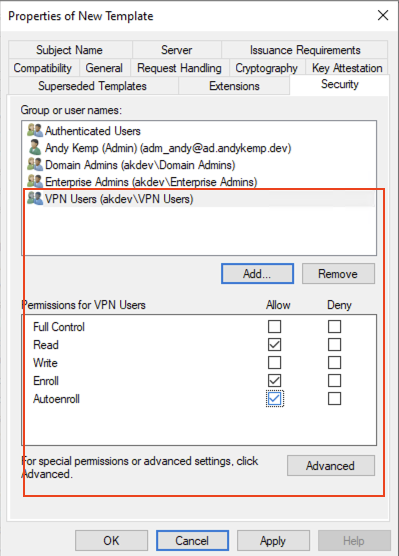
Edit theSecuritytab accordingly, however for both remove theDomain Userspermission
For Domain Joined removeDomain Usersand addVPN Usersfor Entra Joined add theNDES Serviceaccount.
For Domain Joined the permissions forDomain Usersneeded areRead,Enroll,Autoenroll:
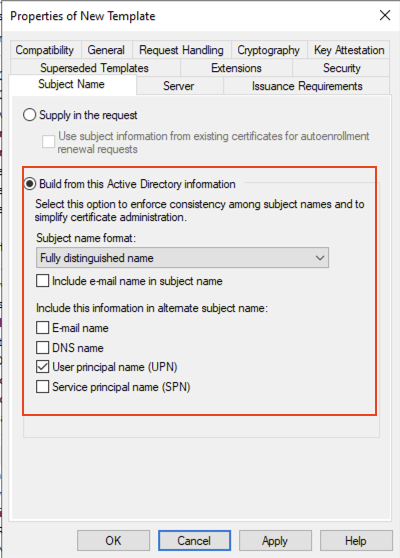
On theSubject Nametab for leaveBuild from this Active Directory informationselected and removeInclude e-mail name in subject nameandE-mail name
Now pressOK, and that it, your user certificates are created.
SCEP Certificate
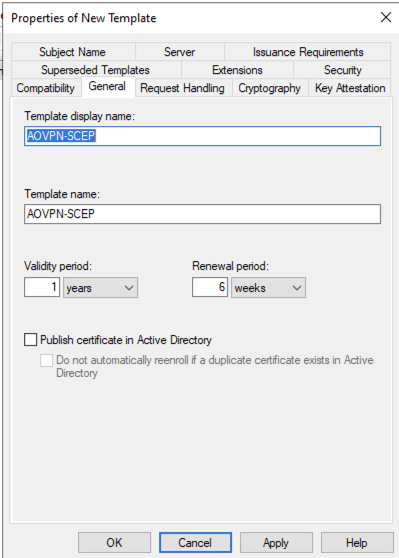
Provide a meaningful for the Certificate in my case I called itAOVPN-SCEP
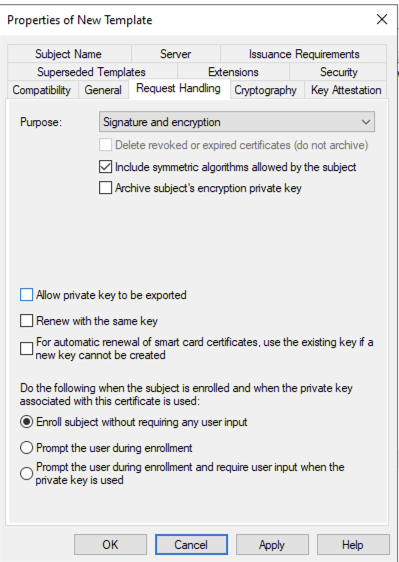
OnRequest Handlingremove the option toAllow private key to be exported
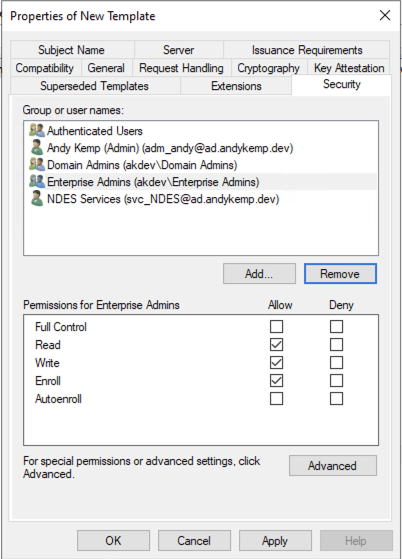
On theSecuritytab add the NDES Service account and enableAllowforEnrolland then remove theDomain Usersgroup
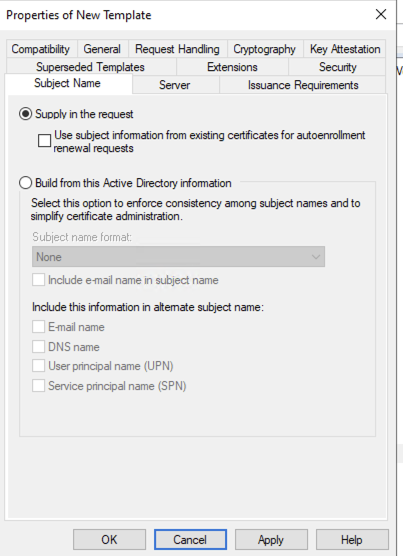
On the Subject Name tab the****Subject Name is to beSupply in the requestanswerOKto the warning prompt whenSupply in the request:
Issue the new certificate templates
Now you have the certificates created you need to issue them so the servers/users can obtain them.
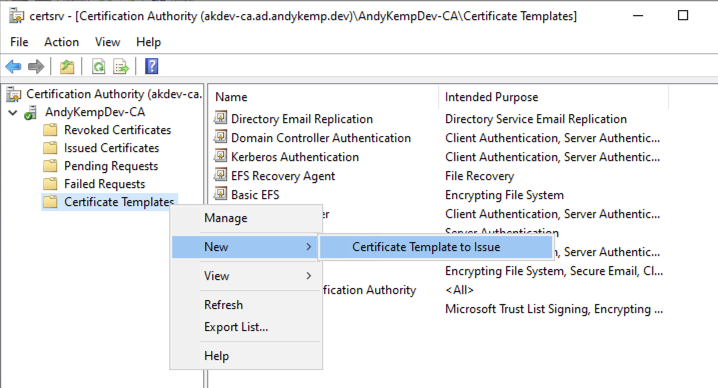
Back in the certificate authority manager right click onCertificate TemplatesgotoNewand selectCertificate Template to Issue:
Select the newly created templates and then clickOK:
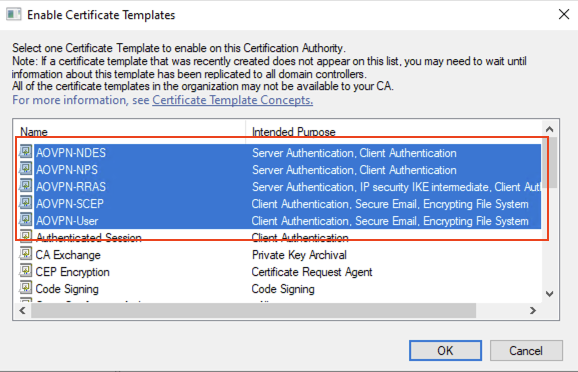
The certificates will then be avaliable in AD:
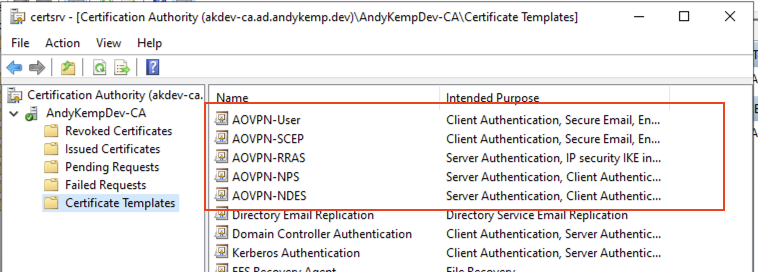
At this point you are now left with the certificates in place for Always On VPN.
Part 3 will be to get the servers prepped, installed and configured
Comments
No comments yet — be the first to leave one below.